How to Restore the Classic Windows 7 Explorer in Windows 10 & 11
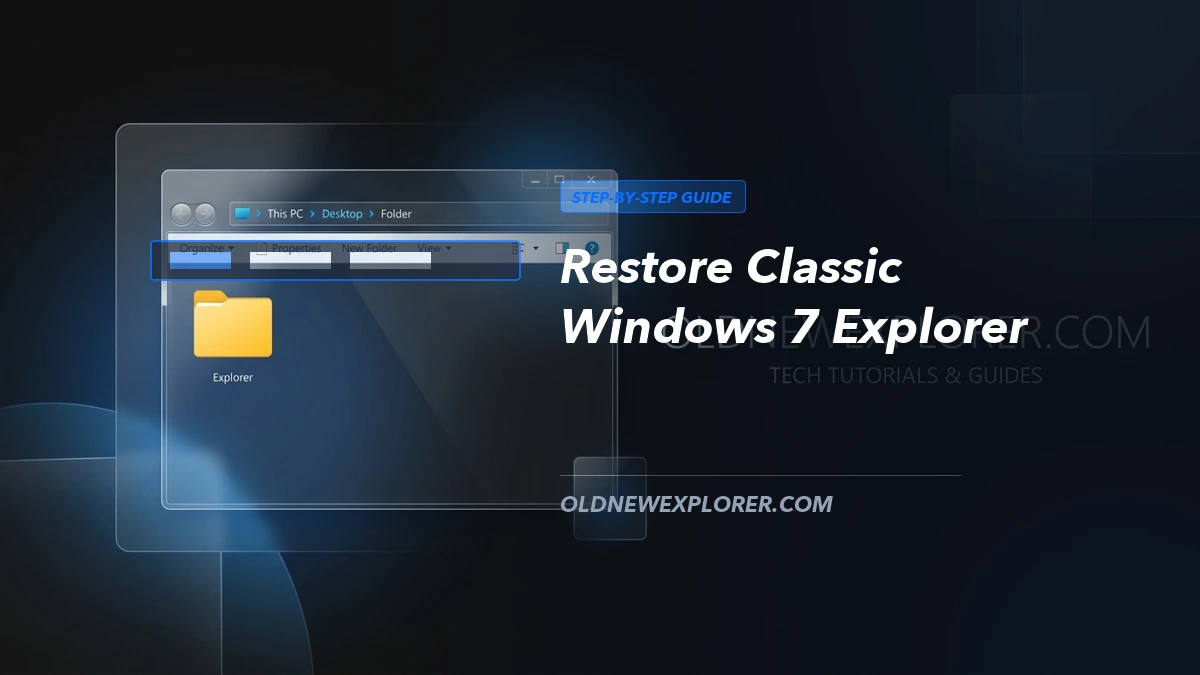
While Windows 10 and Windows 11 introduced various modernization attempts—from the bulky Ribbon toolbar to the modern XAML/WinUI tabs—millions of power users and professionals still miss the clean, responsive, and distraction-free workflow of the Windows 7 File Explorer.
Fortunately, you do not have to settle for the screen-wasting ribbon or slow tabbed explorer. By using OldNewExplorer, a standalone shell extension developed by Tihiy, you can revive the iconic Windows 7 command bar and bottom details pane seamlessly on any Windows system.
Why Revert to the Windows 7 File Explorer?
- Maximizes Vertical Screen Real Estate: The Ribbon UI occupies substantial vertical height with tabs you rarely touch. The Windows 7 command bar is sleek, slim, and contextual.
- Bottom Details Pane: View file size, dimensions, author, and audio bitrates directly along the bottom border of the window without expanding a cluttered right-hand pane.
- Instant File Navigation: Restores circular Forward/Back buttons and Aero glass effects that respond with zero animation lag.
- Separated Drive Grouping: Organizes hard drives, SSDs, and removable media under "This PC" into logical, distinct headers.
Step-by-Step Installation & Setup Guide
- Download the Tool: Visit our OldNewExplorer download page and obtain the latest ZIP archive (v1.1.9).
- Extract to a Dedicated Folder: Do not run the executable from inside the temporary archive. Extract the contents to a permanent location such as
C:\Program Files\OldNewExplorerorC:\Tools\OldNewExplorer. - Launch Configuration: Right-click
OldNewExplorerCfg.exeand select Run as Administrator. - Enable Shell Extensions: Under the Shell extension header, click the Install button. This registers
OldNewExplorer32.dllandOldNewExplorer64.dllwith your Windows shell. - Select Desired Tweaks:
- Check Use command bar instead of Ribbon.
- Check Hide caption text in File Explorer windows and Hide caption icon for a minimalistic titlebar.
- Check Hide Up (go to parent folder) button if you prefer standard breadcrumb navigation.
- Check Enable glass on navigation bar and select your preferred navigation button style.
- Under Status bar and details pane, choose Show details pane on the bottom.
- Restart File Explorer: Open Task Manager (
Ctrl + Shift + Esc), locate Windows Explorer, right-click, and select Restart.
Fine-Tuning on Windows 11
On Windows 11 (22H2, 23H2, and later builds), Microsoft introduced the tabbed Windows App SDK File Explorer by default. To allow OldNewExplorer's command bar to render properly, you can combine it with ExplorerPatcher or launch the classic explorer shell via the Control Panel fallback. Once active, your folder windows will load with classic speed and zero bloated animations.